
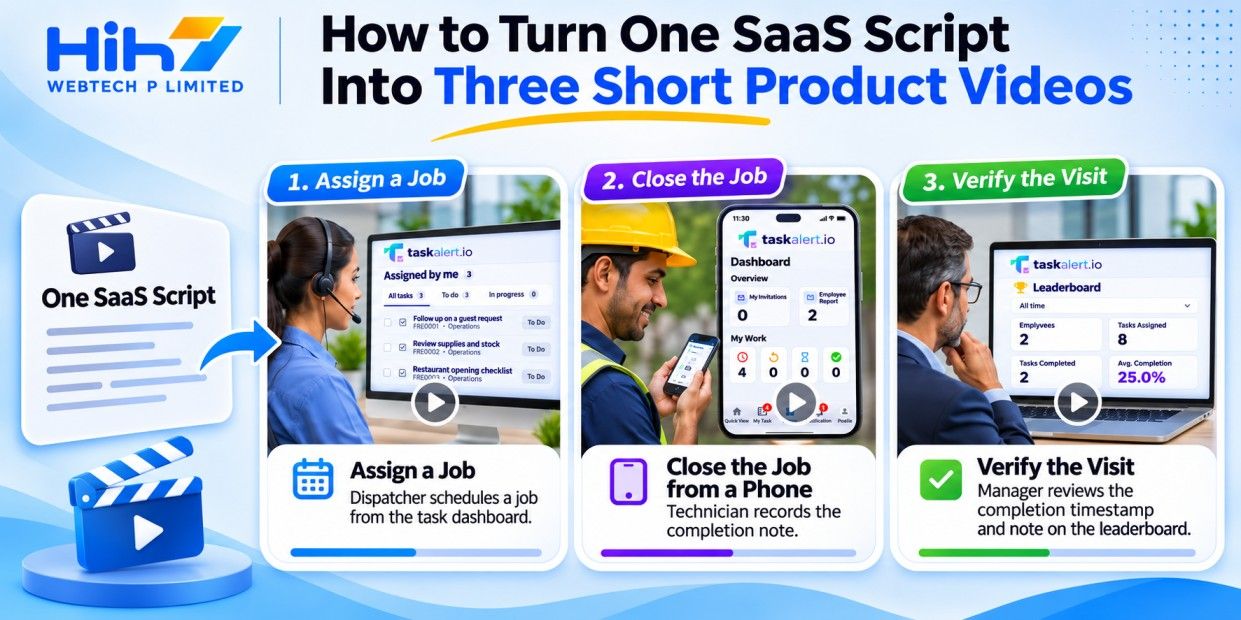
A thirty-second product video can make a workflow look simple and still leave viewers wondering what to do next. Episodic SaaS product videos solve a different problem: each clip helps someone make one decision, and together the clips tell a recognisable story. A buyer can see why a feature matters, a new user can see how to use it, and a manager can see what a completed task looks like. You can plan all three clips from one script.
Plan three episodes around three user decisions
Start with a real customer question that sales or support hears often. Write a short story about one person completing the workflow, then mark the moments when that person has to decide what to do. Give each episode one promise, one visible product action and one next step. Write the opening so it makes sense to somebody who has missed the other clips. If a feature needs a long explanation before it becomes useful, pick a narrower feature for the first series.
Hypothetical example: a field service scheduling app
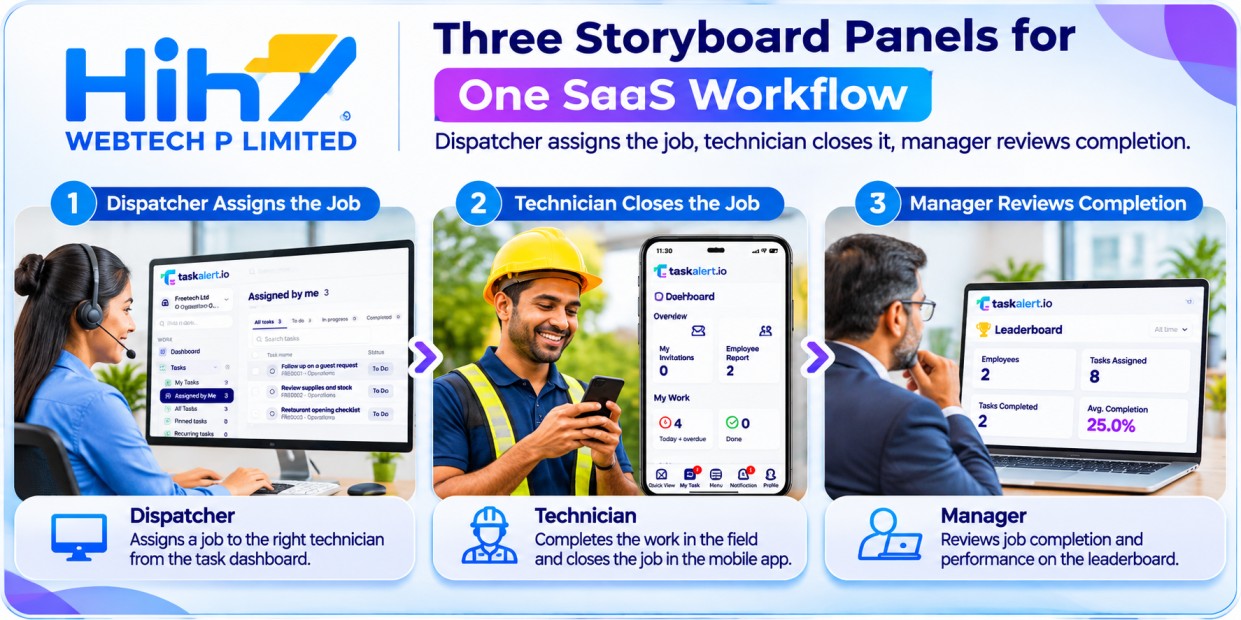
Imagine a SaaS company that helps field service teams schedule jobs. Its script follows a dispatcher and a technician through one appointment. Here is how the same story could serve three different users:
- Episode 1: Assign a job. On the product page, a dispatcher sees a job move from the unassigned queue to a technician’s schedule. The next step is trying the scheduling demo.
- Episode 2: Close the job from a phone. In the app’s help centre, a technician sees where to record a completion note. The next step is opening the relevant task in the app.
- Episode 3: Verify the visit. During trial onboarding, an operations manager sees where to check the completion timestamp and note. The next step is reviewing the first completed job.
Make a continuity sheet before generating footage
Keep a one-page record of the recurring people, clothing, props, locations and the order of events. Include product details that must also stay consistent: the job number, customer name, date and the status labels that appear on screen. Use fictional records and give the same sheet to whoever writes the captions, captures the interface and edits the footage. Otherwise the same job can quietly acquire three different dates.
Higgsfield’s 16 November 2026 changelog describes Short Drama Studio as a desktop early preview that breaks scripts into episodes and plans scenes around recurring characters, locations and props. It lists 480p draft output alongside 720p and 1080p options. That makes it a candidate for testing the same character across two scenes before building a series. The announcement does not give a per-clip price; check access and credit use in your account before quoting a client. The continuity sheet is useful even if your team films the scenes or skips them altogether.
Show the real product when the story reaches the interface
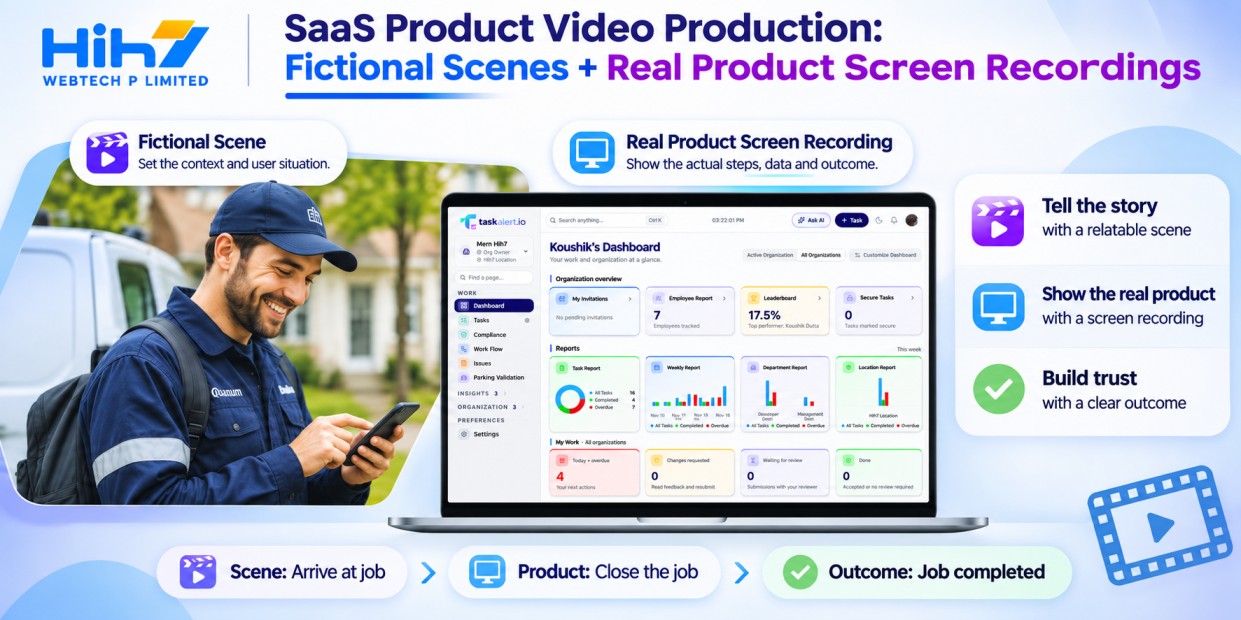
Use generated footage to establish the situation: a technician arrives at a job, or a dispatcher spots a gap in the day. When the story reaches a tap, a setting or a result, cut to a real recording from an approved demo environment. A generated interface can look convincing while showing a button, permission or outcome your product doesn’t actually offer. Capture the mobile workflow on a representative phone so viewers see the layout they will use.
Ask a product owner to verify the exact action, the required role and the resulting status. In the scheduling example, if only managers can see the completion timestamp, say so or show it from a manager’s account. Keep screenshots and narration separate from the story footage so a renamed button requires one recording change. Use approved assets and check the terms for commercial use of generated footage, music and voices before release.
Put each video where its next action makes sense
Put the first clip next to the feature it explains, the second beside the relevant help instructions, and the third where trial users are ready to review a completed job. Use a poster image and let visitors start the video. Google’s web.dev video performance guide explains how preload settings, posters and lazy loading can limit unnecessary downloads. Test on a phone over a slower connection, especially if the clip sits above the page’s main call to action.
Add reviewed captions for spoken audio and meaningful sounds, as described in the W3C guidance for prerecorded captions. Put essential steps in text beside the video so someone can complete the task without playing it. For audiences in the US, UK and Australia, check whether date formats, time zones, units or feature availability affect the example. Change captions or screen captures only where those differences matter.
Run a pilot and count the work viewers never see
Build one complete clip before approving the series. Track prep, rejected renders, editing time, screen recording, caption review and any licence or generation costs. Ask a few users unfamiliar with the script to try the action after watching. Can they find the right control and recognise the correct outcome? If they hesitate, note the exact point of confusion before paying for another edit.
After launch, give each clip one useful measure. For the feature page, look at demo clicks after a play. For onboarding, look at whether viewers complete the task. Playback alone can’t show whether a clip caused an improvement, so treat early numbers as clues and pair them with support feedback or usability observations. Sometimes a clearer label or a two-line instruction is the better fix.
Start with one workflow
Choose the workflow customers already ask you to explain. Send HIH7 Webtech the target page or app screen, the user’s goal and your rough script. Our web design and development team can help you decide where a video belongs, what must be recorded from the real product and how to make the next step easy to find. Contact HIH7 Webtech to discuss a one-workflow pilot.